Support access and login as a person
Updated Reading time: 6 min
On this page
- At a glance
- When someone requests access to your account
- How to respond
- Revoke approval
- End an active session
- For system admins: Log in as another person
- Request approval
- Start login
- When it’s not possible
- What is possible in a session
- Blocked in every session
- What the session does not change
- Traceability and logging
- Exception: Support login without approval
- Login links and passwords for other people
- Logged-in devices and new logins
- Notification: “New login to your account”
- Frequently asked questions
Sometimes it helps to view the platform through the eyes of a specific person—such as when something looks different for them or isn’t working. For this, Kibi Support and your company’s system admins can log in using that person’s account. This only works with the person’s approval, is time-limited, can be ended at any time, and is logged.
At a glance#
Kibi Support |
Your company’s system admins |
|
|---|---|---|
Who requests access? |
Kibi Support employees |
People with the System Admin role |
Person’s approval |
Yes – exception only if technically unavoidable (see below) |
Always, without exception |
Where is the request made? |
In the Kibi Support area |
In the person’s profile: “…” → Log in as this person |
Request remains open |
72 hours |
72 hours |
Approval is valid for |
24 hours, for one login |
24 hours, for one login |
Session lasts at most |
24 hours |
24 hours |
Works council area |
Blocked |
Blocked |
In the login log as |
“Kibi Support” |
“Admin: <Name>” |
When someone requests access to your account#
If Kibi Support or your administration requests access, you’ll receive a notification—in the bell icon and as a push notification on your devices:
“Support requests access” – a Kibi Support person wants to log in.
“Your administration requests access” – a system admin from your company wants to log in.
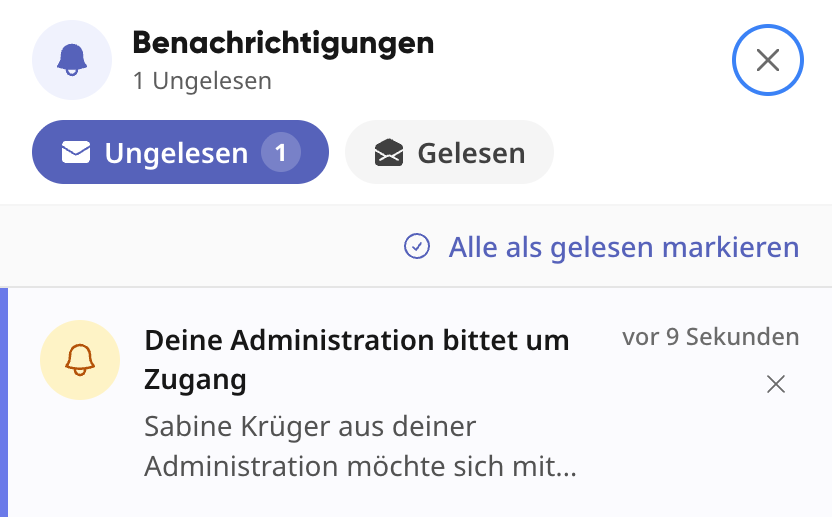
You’ll receive this notification even if you’ve muted this type of notification. “Do Not Disturb” and your working hours still apply as usual.
How to respond#
Open the notification and select View request.
You’ll see who is requesting access, when, and for what reason. A countdown shows how much time you have left to respond.
Select Approve or Deny.
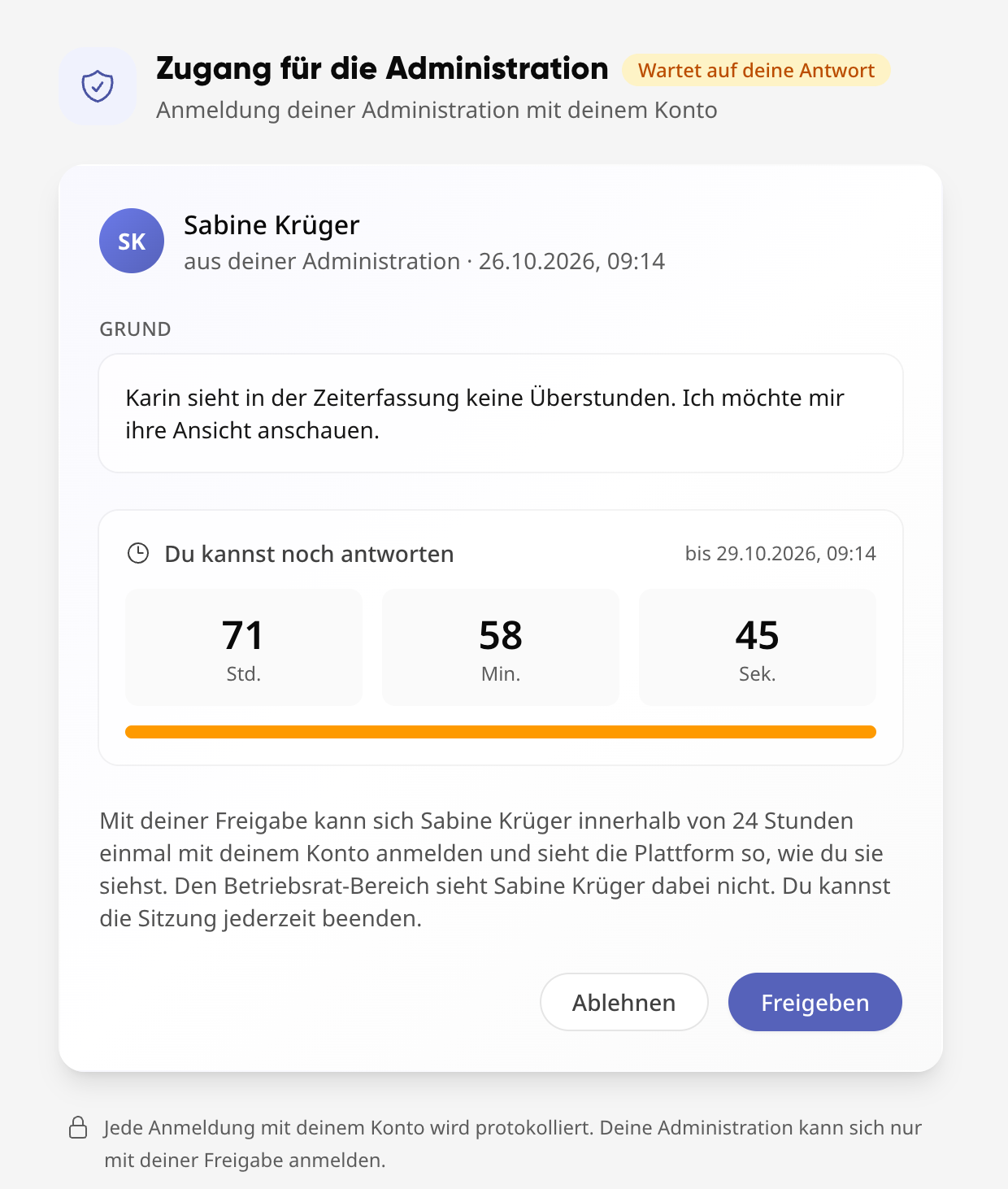
The person who made the request will be notified of your response immediately—in the platform and via email.
Info
With your approval, the exact person who requested access can log in once using your account within 24 hours. They will then see the platform exactly as you do.
Revoke approval#
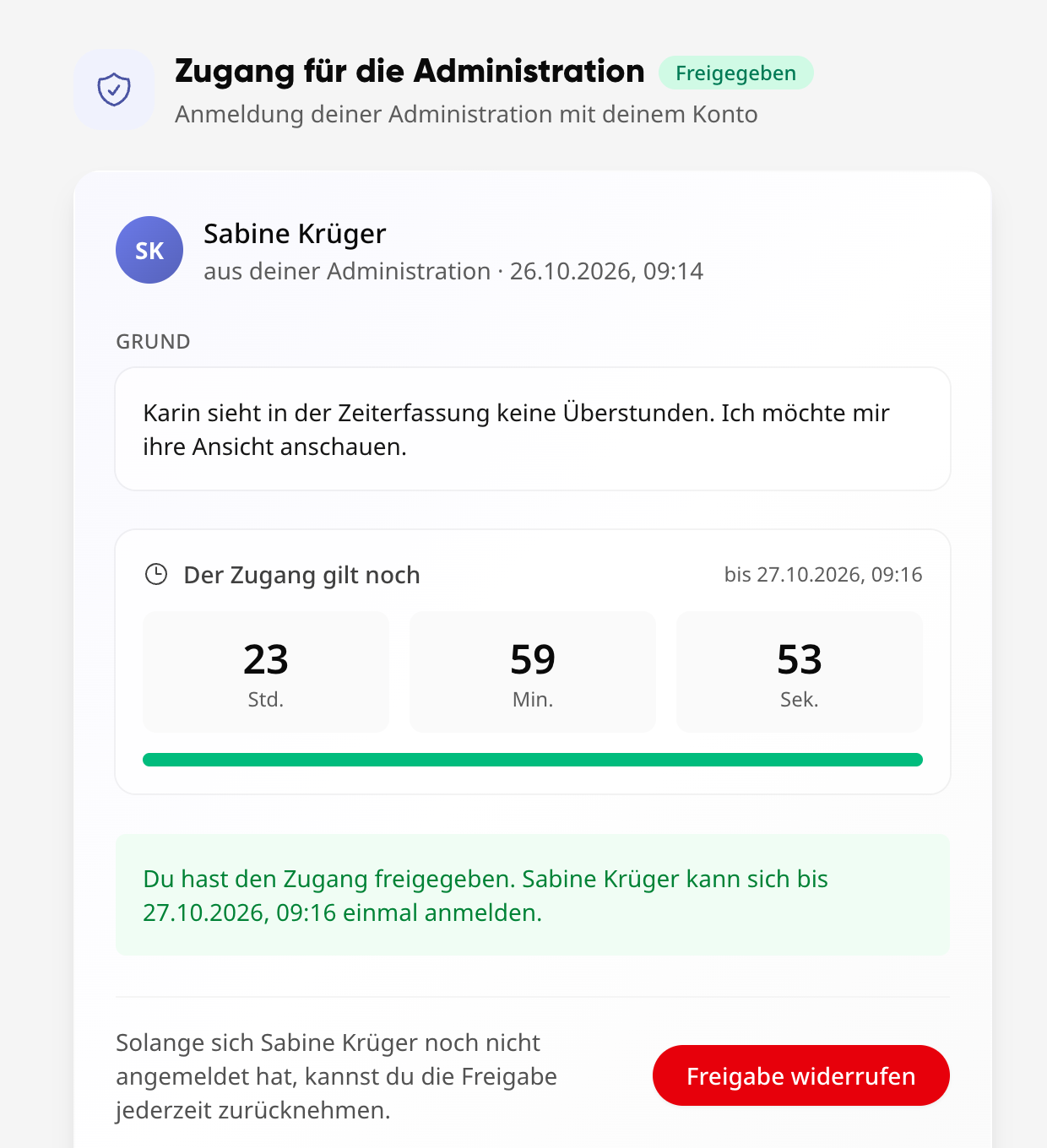
As long as no one has logged in yet, you can revoke the approval on the same page using Revoke approval. After that, no login will be possible.
End an active session#
While someone is logged in with your account, the platform will display a notice at the top on all your devices, for example, “Kibi Support is currently logged in with your account.” Via View and end, you can access the request and end the session with End session. The other person will be logged out immediately and notified.

For system admins: Log in as another person#
As a system admin, you can log in using another person’s account, for example, to reproduce a problem. You always need their approval—there is no way around this.
Request approval#
Open the person’s profile under Colleagues.
Select “…” → Log in as this person at the top.
Briefly describe what you want to help with (minimum 10 characters). The person will see this reason.
Select Request approval.
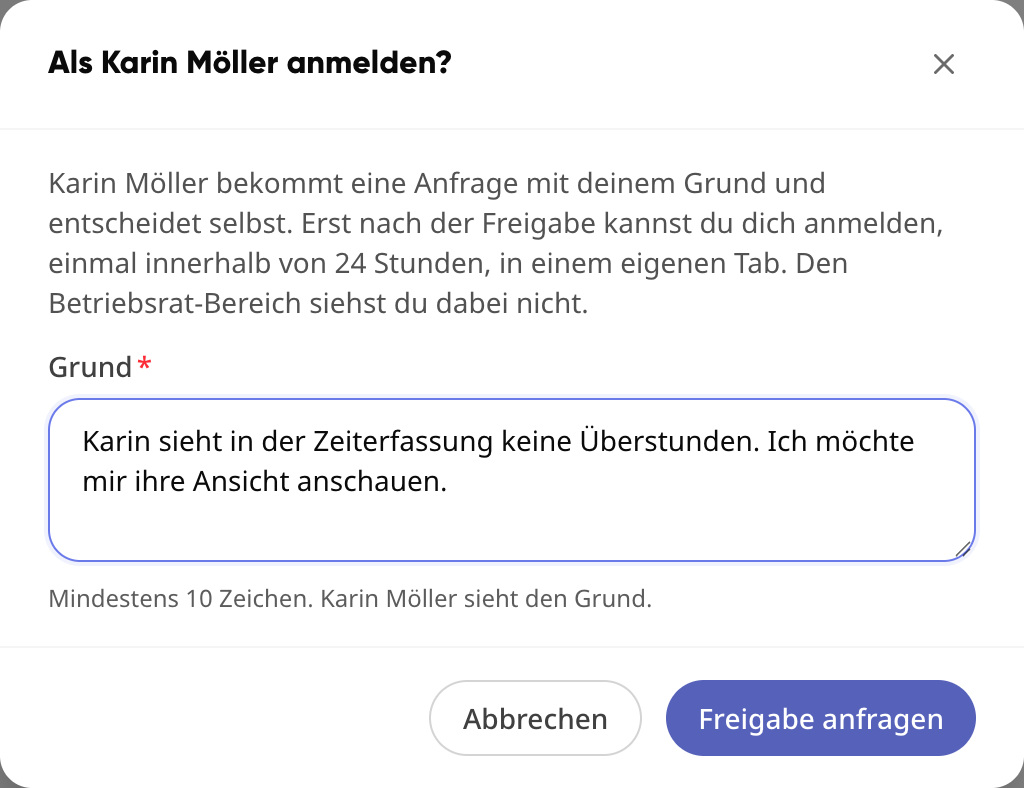
As soon as the person responds, you’ll receive a notification and an email.
Start login#
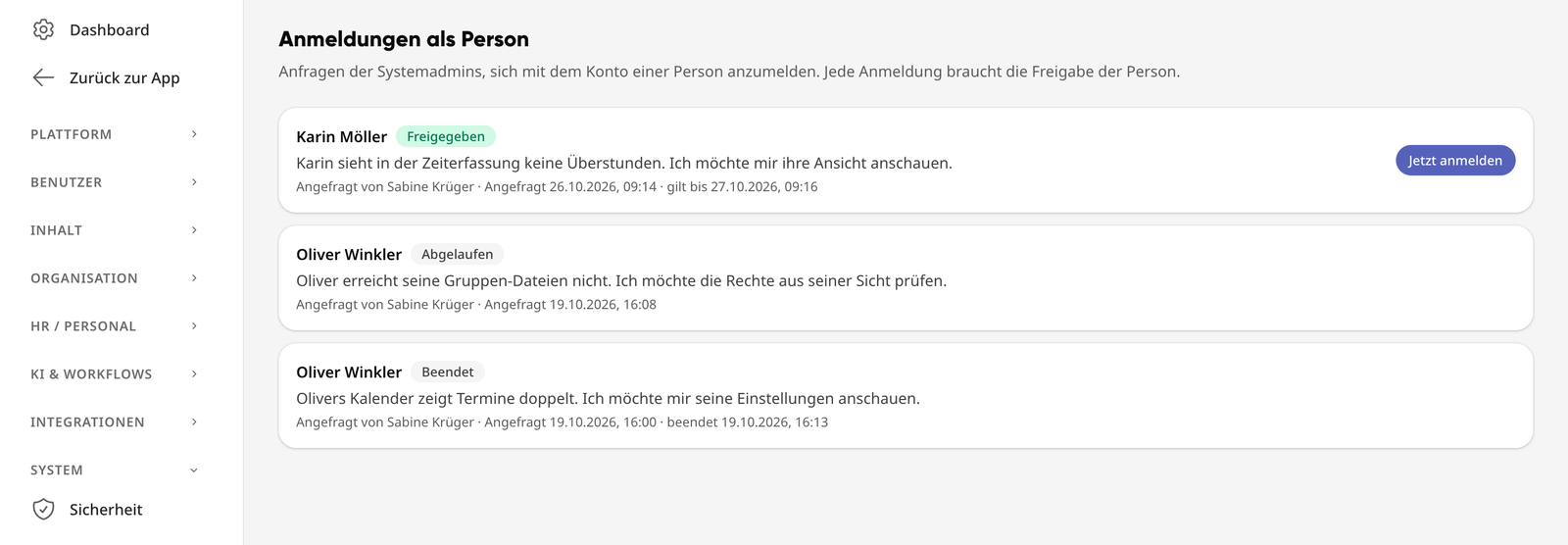
Open Administration → System → Log in as another person. All requests from all system admins in your company and their status are listed there.
For an approved request, select Log in now.
The session opens in a new tab. You remain logged in with your own account in the previous tab.
Warning
If your browser blocks the new tab, allow pop-ups for the platform and try again.
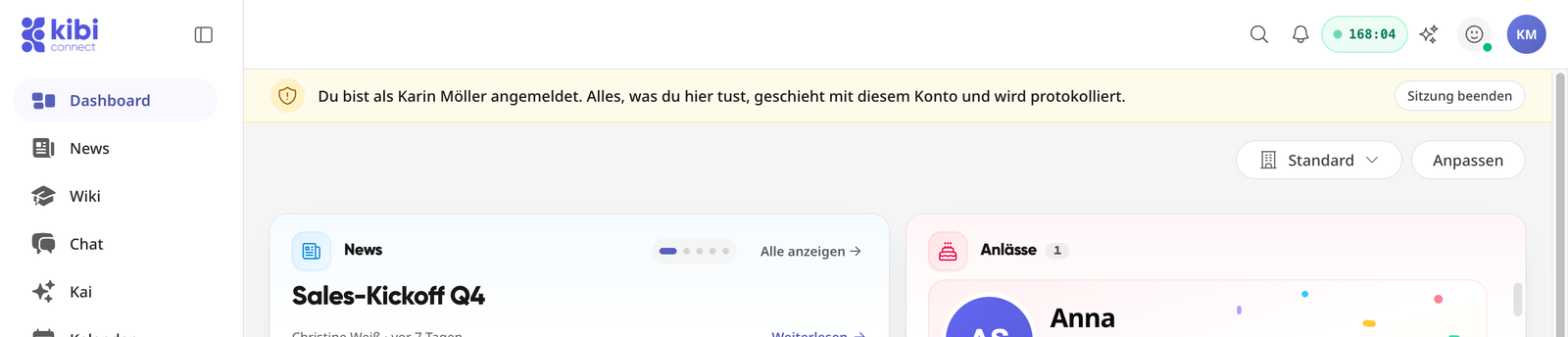
At the top of the session tab, it says, “You are logged in as …. Anything you do here is done with this account and will be logged.” Use End session to log out. After that, you can close the tab.
When it’s not possible#
Only system admins can log in as another person.
Not as another system admin, not as yourself.
Not as Kai or as a service account.
Not for locked accounts—the person wouldn’t be able to see the request.
Not from an active session as another person.
If the person has become a system admin since giving approval or their account has been locked, the approval becomes invalid.
What is possible in a session#
Whoever is logged in with a person’s account sees the platform as they do—with their groups, files, appointments, and permissions.
Warning
For system admins, this also applies to personal content: Chats, emails, notes, and conversations with Kai belonging to the person are visible during the session. The person’s approval covers this—they should therefore be aware of what they’re agreeing to.
Blocked in every session#
Works council area
Remains blocked—even if the person is a works council member.
Access data and security
Password, email address, two-factor authentication, passkeys, personal API tokens, “log out other sessions,” and switching to another company. Only the person themselves can change these.
Personal login link
The person’s login QR code and login link cannot be accessed.
Confirmations
Terms of use and privacy policy can only be confirmed by the person themselves.
Delete or mute notifications
This ensures no one can remove a notice the person received about the session.
Office and downloads via browser session
Pages requiring their own browser login will not open during the session.
What the session does not change#
To ensure the session doesn’t appear as the person’s activity:
The person does not appear as “online.”
Chats, notifications, and emails remain unread—there is also no read receipt.
The person’s push notifications do not appear in the other person’s browser, and their push notifications are not suppressed.
Content modified during the session appears in the respective history as changes made by the person.
Traceability and logging#
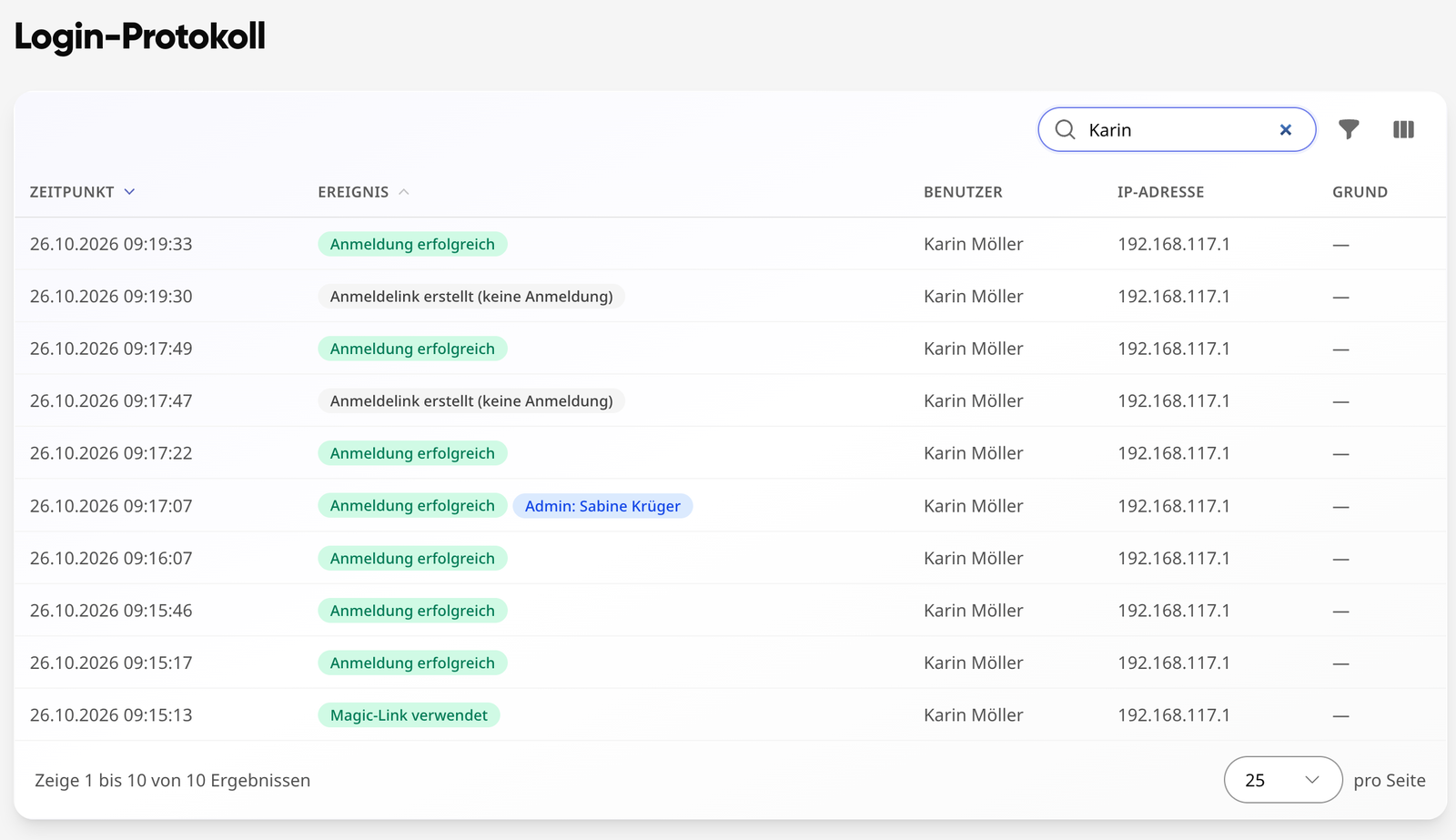
Login log
System admins can see every entry generated during a session under Administration → System → Login log—marked with “Kibi Support” or “Admin: <Name>”.
Logged-in devices
The session appears in the person’s device list with the same note.
Log at Kibi
Every support login is also centrally logged by Kibi: who, when, for whom, for what reason, when approved or denied, when started and ended. Entries cannot be modified or deleted afterward.
Exception: Support login without approval#
In rare cases, Kibi Support can log in without approval—only if it is technically unavoidable or another legal basis exists, and only with justification. This applies, for example, if the account or company is locked and the person couldn’t even see the request. Kibi logs these logins centrally. Any changes the support makes to other accounts (such as creating a login link or resetting two-factor authentication) appear in the login log as “Kibi Support,” and the affected person is notified.
Info
System admins in your company do not have this option. They always need the person’s approval.
Login links and passwords for other people#
If someone creates a login link for another person—copied, as a QR code or PDF, via email—or sets their password, the following applies:
A warning message appears first.
The action is recorded in the login log, including the type and originator.
The person is notified immediately—in the platform and via email, even if “Do Not Disturb” is enabled, for example, “… has created a login link for you.” Multiple identical actions within 10 minutes result in a single notification.
If the link is sent to the person via email, that email itself serves as the notification.
The QR code for login is only shown in your own profile, never on another person’s page.
Logged-in devices and new logins#
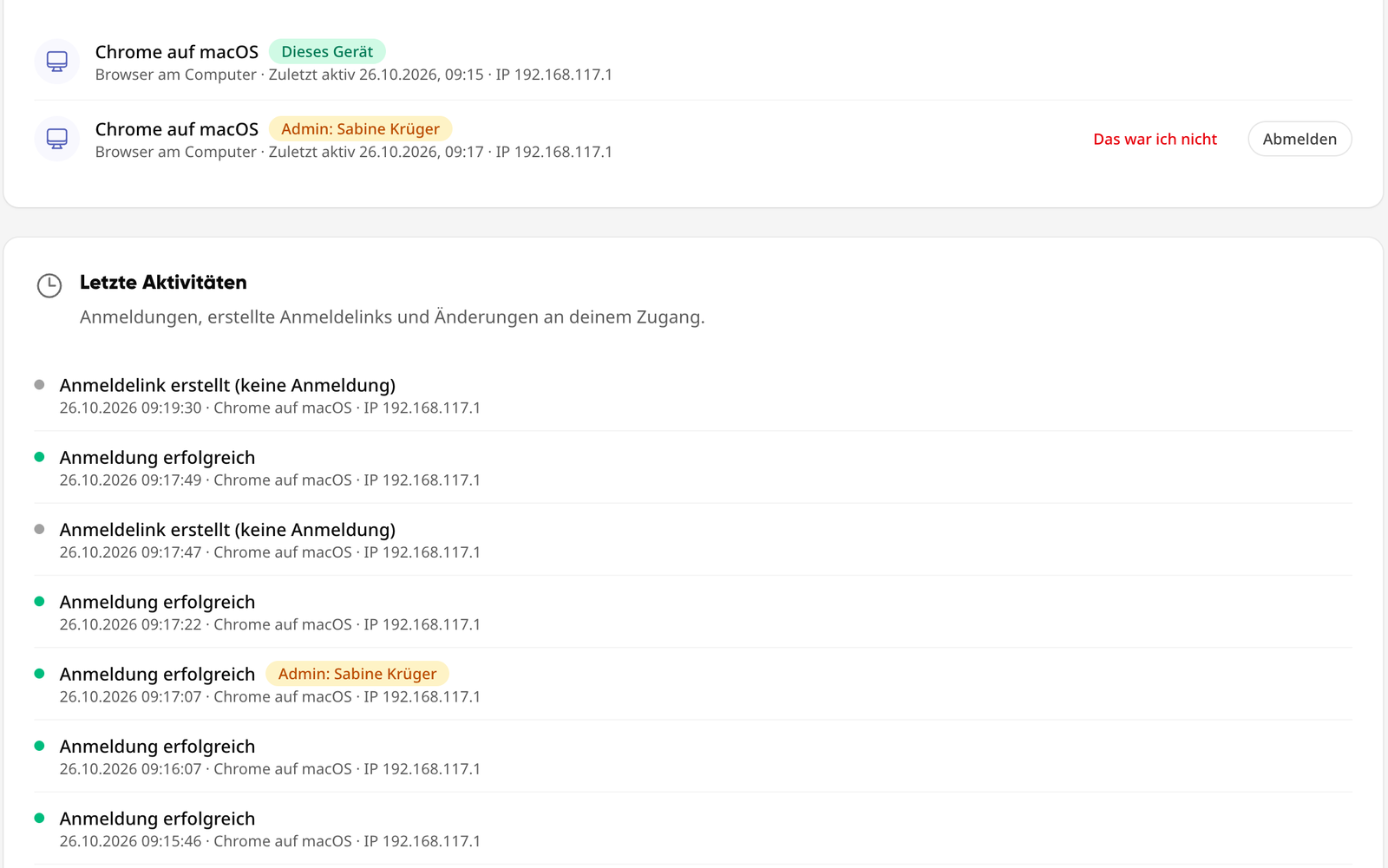
Under My Account → Profile → Security, you can see where your account is logged in:
Logged-in devices
Each device is listed once—browser on computer, phone or tablet, desktop app or Kibi app—with “Last active” and IP address. The current device is marked as “This device.”
Log out
Logs out a device immediately. Whoever is using it must log in again.
That wasn’t me
Logs out the device and notifies your company’s system admins. You should then change your password.
Recent activities
Your logins, created login links, and changes to your access, each with the device used.
Notification: “New login to your account”#
If someone logs in to your account on a device you’ve never used before, you’ll receive a notification with the device, IP address, and time—also via email and even if “Do Not Disturb” is enabled.
During the first login, the platform only recognizes your device—no notification is sent yet.
A private browser window is treated as a new device each time.
For logins by Kibi Support or your administration, this notification is not sent—instead, there is the request and the notice at the top of your devices.
Warning
If that wasn’t you? Open Security → Logged-in devices, select That wasn’t me for the unknown device, and change your password.