
How do I use the version history?
Updated Reading time: 2 min
On this page
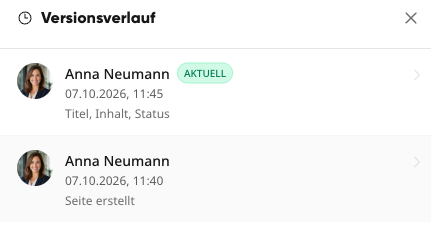
Each time a wiki page is saved, a new version is created. This allows you to track who changed what and when – and revert to an earlier version if needed.
What does "current version" mean?#
The current version is the most recently saved state of a page – what all readers see. All older entries in the version history are previous versions and are only for reference or restoration.
What is versioned?#
Each save creates a complete snapshot of the following information:
Title
Page content
Assignment (parent page / category)
Responsible person
Comment setting (comments allowed)
Status (draft / published)
Tags
For each version, the author and timestamp are also saved – so you can see who made the change and when.
Viewing and comparing versions#
Open the page for editing.
Open the version history.
Select a version – you will see the changes in direct comparison to the previous version (additions and deletions are highlighted).
Restoring a previous version#
Open the page’s version history.
Select the desired previous version.
Restore this version – its content will then become the current version again.
Info
When restoring, nothing is lost: The previous state remains as a version in the history. You can always switch back if needed.
How long are versions retained?#
The version history is stored completely and indefinitely: There is no time limit, and versions are not automatically deleted. Even very old versions of a page remain accessible.
Info
The version history belongs to the respective page. If a page is permanently deleted, its version history is also removed.
When is the version history helpful?#
To quickly undo accidental changes.
To track who last updated a page.
To compare an earlier version with the current one.